How to Add 3D and AR to Your Website Without an App
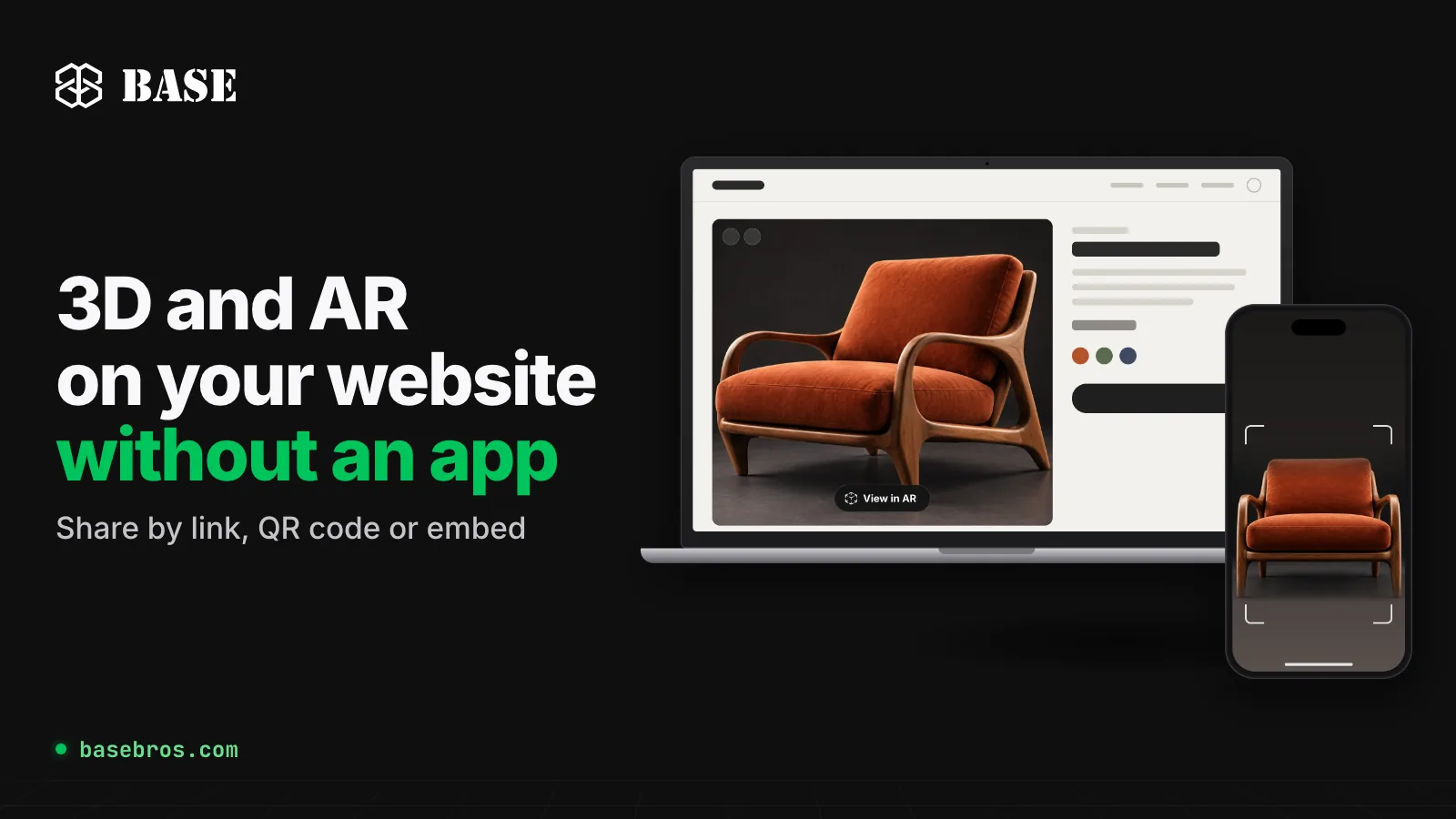
To add 3D and AR to your website without an app, publish your product as a 3D-AR page in BASE 3D-AR Studio and paste its embed code into your site. Visitors rotate and zoom the model right on your page. On iPhone and iPad, the AR button opens Apple AR Quick Look; on Android, it opens WebXR in Chrome; on a desktop, it shows a QR code that hands the visitor off to their phone.
Key takeaways
- Every model in the Studio gets its own hosted 3D-AR page, so there is no viewer to build or host yourself.
- One page, three ways to share it: a public link, a QR code and a copy-paste iframe embed code, all in the Share & Embed popup.
- AR opens in the phone's own browser or built-in AR viewer: Apple AR Quick Look with USDZ on iPhone and iPad, WebXR in Chrome on Android.
- AR inside an embed needs an HTTPS page and the permissions in the iframe's allow attribute. The Studio's embed code already includes those permissions.
- Set Model Scale before you publish, so surface tracking places the product on a real surface at true scale.
What does "3D and AR without an app" mean?
Adding 3D and AR to a website without an app means visitors view an interactive 3D model in their web browser and place it in their own space through the phone's camera, with nothing to download or install first.
In BASE 3D-AR Studio, built by BASE BROS, that experience lives on a hosted 3D-AR page. Each model has exactly one page, powered by the BASE 3D Viewer (WebGPU with automatic WebGL fallback) and equipped with a built-in Augmented Reality button. Viewing a page requires no account, so anyone with the link, the QR code or access to your embedded page can open it.
How does AR open on each device?
The same page adapts to each visitor's device automatically. Here is what happens when someone taps or clicks the AR button, labeled View in AR by default:
| Device | What opens | File used |
|---|---|---|
| iPhone and iPad | Apple AR Quick Look, the AR viewer built into iPhone and iPad | A USDZ the Studio builds from your GLB, or your own custom .usdz |
| Android phones | WebXR in Chrome, backed by ARCore | Your GLB with your latest material edits |
| Desktop and laptop | A QR popup; scanning it starts AR on the phone | None for AR: the page shows the interactive 3D view |
On iPhone, iPad and Android, surface tracking places the product on a real surface at true scale, and visitors move and rotate it with touch gestures. When a real-world size is set, the scale stays fixed at that size. If an Android browser lacks WebXR, the page asks the visitor to open it in Chrome. For why iPhone and Android need different files, see GLB vs USDZ: How to Prepare 3D Models for Web and AR.
How do you add 3D and AR to your website, step by step?
The entire setup happens in your browser, and the only code involved is one snippet you paste:

Step 1: Get your product into the Studio as a 3D model
Upload a .GLB file of up to 50 MB, or create a model from product photos or a text prompt in the 3D Generator. A new upload or AI-generated model goes live on its own 3D-AR page without a Save. The full walkthrough of uploading, generating and editing is in How to Create a 3D and AR Product Page with BASE 3D-AR Studio, and tips on choosing photos that generate well are in Image to 3D: How to Turn Product Photos into 3D Models with AI.
Step 2: Set the real-world size and the first view
In the Model Editor, open the Controls tab and set Model Scale: enter the product's longest side in centimeters or use the multiplier. The 3D view does not change, but in AR the model appears at exactly that size. In the same tab, Set Start View fixes the angle visitors see first. If you want the viewer to blend into your page, pick the No Background swatch in the Scene tab for a transparent background.
Step 3: Style the AR button in Page Designer
In Page Designer, the AR Button tab holds the Show AR button toggle, which decides whether the button appears, along with its label (up to 40 characters), position, font, colors, radius and opacity. The QR Popup Editor sets the title, text and four colors of the popup that desktop visitors see. Style desktop and mobile separately, or keep them identical with the Use the same on desktop and mobile checkbox. Press Save to publish. In the Studio, saving is publishing, and no change reaches the live page until you save.
Step 4: Copy the embed code from Share & Embed
Open Share & Embed from the model's three-dot menu, from the Library, or with Share Page in Page Designer or More Details. One card holds everything: the QR code with Download PNG, the public link with Copy, the ready-to-paste embed code with Copy embed code, and Open live page.
Step 5: Paste the embed code into a page served over HTTPS
Paste the iframe where the 3D viewer should appear, for example in a product description or a landing page section. Keep the snippet exactly as the Studio provides it:
- Keep the allow attribute. Its camera, gyroscope, accelerometer and xr-spatial-tracking permissions are what make AR work. Without them, browsers block sensor access.
- Serve the page over HTTPS. AR needs a secure connection for camera access and never runs on HTTP.
- Keep loading="lazy". The 3D engine then starts only when the embed scrolls into view.
- Avoid a fixed pixel height on mobile. Instead, wrap the iframe in a container with a 4 / 3 aspect ratio so it scales with the screen.

Step 6: Test on an iPhone, an Android phone and a desktop
Open your page on an iPhone or iPad and tap the AR button to check Quick Look. On Android, open it in Chrome to check WebXR. On a desktop, click the button and scan the QR code. In each case, check that the product appears at the size you set in Model Scale.
Link, QR code or embed: which should you use?
All three open the same live page, so you can combine them freely:
| Where your audience is | Best option | Why |
|---|---|---|
| On your website | Embed code | The 3D viewer and AR button sit inside your own page |
| In an email, chat or social post | Public link | One URL opens the full page in 3D, with AR on phones |
| On packaging, print or in a store | QR code | A scan opens the page on the phone, ready for AR |
| At a desk, browsing your site | AR button with QR popup | The desktop visitor scans and continues in AR on a phone |
Because the embed displays the hosted page, every Save in the Studio updates your site too, with nothing to paste again. For your own uploads, Change Model in More Details swaps the .GLB and keeps the page, the link and the analytics.
How do you keep the 3D viewer fast on your site?
A lighter model loads faster and opens in AR sooner, especially on phones. The Studio handles much of this for you:
- AI models start optimized. Right after generation, the Studio applies Balanced triangle reduction, 2K WebP textures and Draco compression automatically.
- Optimize the live file. More Details > Optimize cuts triangles by about 25, 50 or 75 percent and offers WebP, PNG or Keep for textures, 1K or 2K texture size, and Draco compression. You see the measured final size before you Apply, Revert restores the backup, and the Studio rebuilds the iPhone USDZ for you.
- Lighten files before upload. The free Model Optimizer lightens a .GLB in your browser without an account and without uploading it.
For a full checklist on triangles, textures and Draco, see how to prepare 3D models for web and AR.
How do you measure 3D and AR engagement?
Analytics in the Studio covers all pages or a single page over All Time, 30 days, 7 days, 24 hours or a custom range. Its 12 Quick Stats include Total Views, Unique Sessions, QR Scans, AR Activations, 3D Interactions, Avg View Duration and Bounce Rate. Distribution breaks visits down by operating system, device, browser and location, Top Referrers shows where visitors came from, and Export PDF saves a report. See the Analytics documentation.
How much does it cost?
BASE 3D-AR Studio is priced per model, and editing, AR, publishing and sharing by link, QR code or embed are included on every plan:
- Free: $0 with no card, up to 3 live models and 3 new models a month. Pages and embeds show a small Powered by BASE watermark.
- Pro: $0.50 per model per month (launch price), minimum $20 a month for 40 models, with no watermark.
- Enterprise: custom pricing and capacity, custom 3D projects and dedicated support.
The pricing page shows the monthly price for the number of models you need.
Frequently asked questions
Do visitors need an app to see a product in AR?
No. On iPhone and iPad, the AR button opens Apple AR Quick Look, which is built into the device, and on Android it opens WebXR in Chrome. On a desktop, the button shows a QR code so the visitor can continue on a phone.
Does AR work inside an embedded iframe?
Yes, when the page that holds the iframe is served over HTTPS and the iframe keeps its allow attribute with camera, xr-spatial-tracking, accelerometer and gyroscope. The embed code from Share & Embed already includes these permissions.
Why doesn't the AR button open AR on my website?
Check that your page uses HTTPS, that the allow attribute is still in the iframe, that Show AR button is on in Page Designer and that the page is Live. On desktop, the button shows a QR code by design, and on Android the page needs a browser with WebXR, such as Chrome.
Do I need to write code to embed a 3D model on my website?
No. The Studio generates the embed code for you. Copy it from the Share & Embed popup and paste it into your page; there is no build step and there are no dependencies.
Do changes in the Studio update the embed on my website?
Yes. The embed shows your hosted 3D-AR page, so when you press Save in the Studio, your site shows the updated page without a new embed code.
Does the Free plan show a watermark in the embed?
Yes. On the Free plan, the embed shows the same public page, so the small Powered by BASE watermark appears there too. Pro and Enterprise pages have no watermark.
Conclusion
Adding 3D and AR to your website comes down to one hosted page and one snippet: create the model in the Studio, set its real-world size, style the AR button, press Save and paste the embed code into an HTTPS page. Visitors get an interactive 3D view on every screen and AR on their phones, with no app to install. Start for Free, read the embed documentation, explore the showcase of brand projects, or contact the BASE BROS team for custom 3D projects or Enterprise capacity.