How to Create a 3D and AR Product Page with BASE 3D-AR Studio
To create a 3D and AR product page, add your product to BASE 3D-AR Studio as a 3D model, by uploading a .GLB file or generating one with AI, and the Studio gives it its own live 3D-AR page. You refine materials, scene and page design, press Save, and share the page as a link, QR code or embed code. On iPhone, iPad and Android phones the page opens in AR without an app.
Key takeaways
- Every model in the Studio has exactly one 3D-AR page, so there is no page builder or hosting to set up.
- Start from your own .GLB file (up to 50 MB) or generate a model with six AI engines: all six work from photos, four also from text.
- Edits stay a private preview until you press Save; one Save updates the live page.
- AR opens from the page: Apple AR Quick Look with a USDZ file on iPhone and iPad, WebXR in Chrome on Android, a QR code on desktop.
- Free covers 3 live models and 3 new models a month; Pro is $0.50 per model per month, minimum $20.
What is a 3D and AR product page?
A 3D and AR product page is a web page where shoppers rotate, zoom and inspect a product as an interactive 3D model and, on a phone, place it on a real surface in their own space at true scale with augmented reality.
In the Studio, built by BASE BROS, each model has exactly one page, and editing the model updates that same page. Pages run in the browser on the BASE 3D Viewer, a WebGPU viewer with automatic WebGL2 fallback, with an Augmented Reality button built in.
What do you need before you start?
- A Studio account. The Free plan at studio.basebros.com needs no card.
- A model source. A .GLB file up to 50 MB, product photos (PNG, JPG, WebP, AVIF or HEIC up to 20 MB each) or a text description of 10 to 500 characters. FBX, OBJ and STL are not supported, so convert them to GLB first.
- Optional: a logo in PNG, JPG or WebP up to 5 MB.
To check a GLB before uploading, open it in Quick View, which shows it in the Studio's viewer without uploading it.
How do you create a 3D and AR product page, step by step?
The workflow has four steps, all in the browser:

- Model: upload a .GLB or generate a model with AI.
- Edit: tune materials, lighting, camera and scale in the Model Editor.
- Publish: style the page in Page Designer and press Save.
- Share and AR: send the link, QR code or embed code; visitors open AR from the page.
Step 1: Add your product as a 3D model
If a 3D file exists, upload it. Click Upload Model in the viewer top bar or drag a .glb file onto the Model Editor. A single file opens in Preview mode, so you can check it before choosing Confirm & Upload, and the new model goes live with its page right away. To make the file lighter before you upload it, read how to prepare 3D models for web and AR.
If you only have photos or an idea, use the 3D Generator, the screen the Studio opens on. Choose Image to 3D (the default) or Text to 3D, then one of six AI engines: Meshy (the default), Tripo, Rodin, Hunyuan, TRELLIS or Pixal3D. TRELLIS and Pixal3D work from images only. For multi-view, Meshy, Tripo and Hunyuan Pro accept up to 4 images and Rodin up to 5, in the order front, back, left, right.
The Studio prepares AI models for the web automatically with Balanced triangle reduction, 2K WebP textures and Draco compression. Uploaded or generated, each new model counts once toward your plan.
Step 2: Edit materials and the scene in real time
The Model Editor's right panel has three tabs:
- Scene: seven built-in presets (Default, Factory, Studio, Spotlight, Showroom, Cinematic, Outdoor), 20 HDRI environments, backgrounds, exposure, lights and soft shadows.
- Controls: auto-rotate, zoom and pan toggles with zoom in and zoom out limits, a saved Start View for the first angle visitors see, and Model Scale, the real-world size in centimeters used in AR.
- Material: pick a part with the eyedropper and edit Base Color, Roughness, Metalness, Normal, Emissive and Occlusion (each with an optional texture map) and Alpha (opacity, blend mode and double sided), each with a reset.
Material edits are a non-destructive layer, so the original GLB never changes. Five view modes (UV Checker, Solid, Render, Wireframe, Normals) reveal texture and mesh problems. For heavy files, the Optimize tab in a model's More Details popup cuts about 25, 50 or 75 percent of triangles, with texture and Draco options. Nothing is public until you press Save on the Unsaved changes card.
Step 3: Design and publish the live 3D-AR page
Page Designer previews the page in a laptop frame and a phone frame side by side. The AR Button tab sets the button label (up to 40 characters), position, font, colors, radius and opacity, plus the QR popup desktop visitors see. The Toolbars tab holds your logo and the Photo, Light/Dark, Fullscreen and optional Performance buttons.
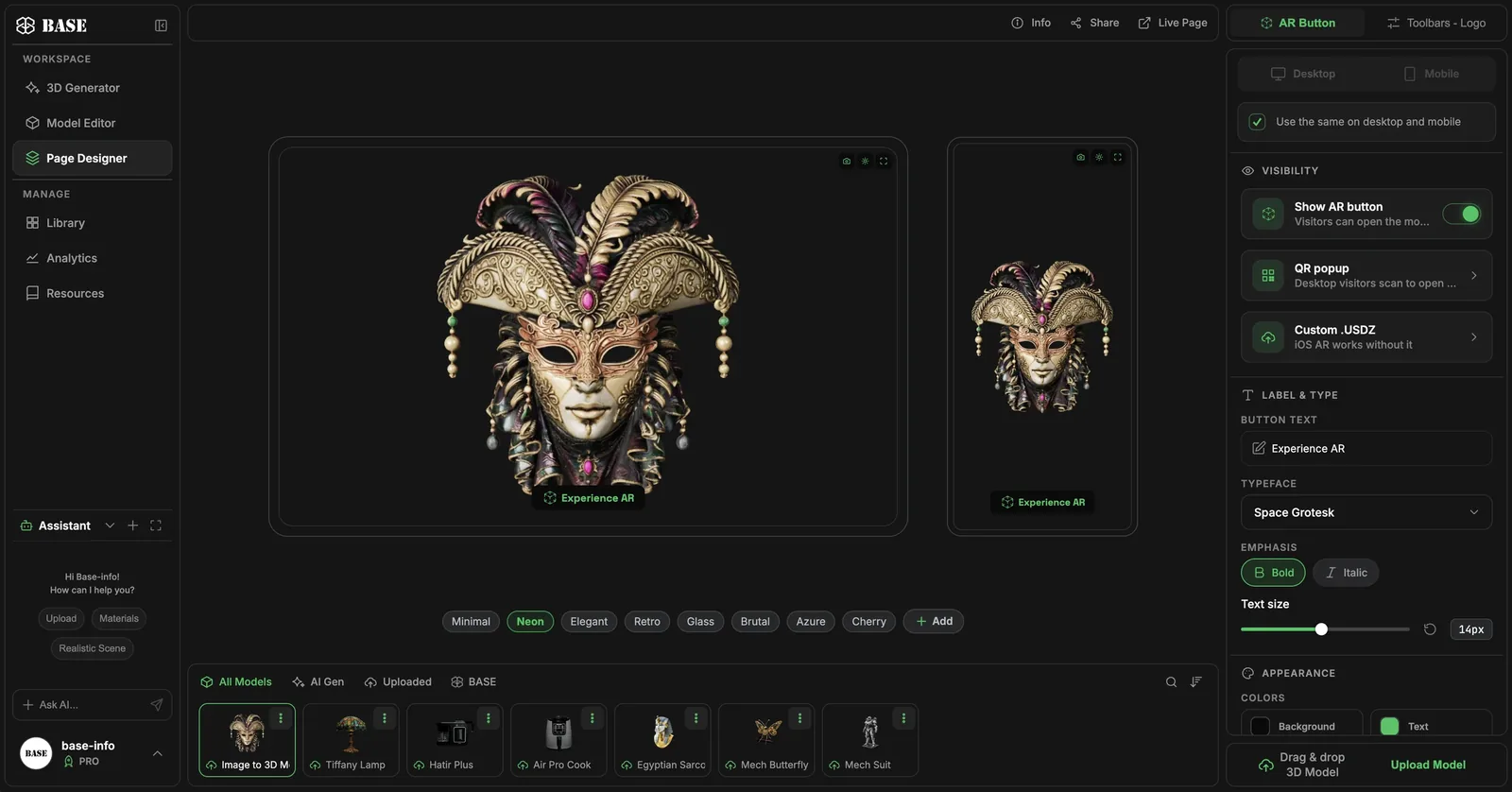
Style desktop and mobile separately or identically with one checkbox, or apply one of eight built-in Page Themes (Minimal, Neon, Elegant, Retro, Glass, Brutal, Azure, Cherry). For iPhone you can upload a custom .usdz; otherwise the Studio builds the USDZ from your GLB.
Press Save to publish: there is no separate publish step. To take a page down for a while without deleting it, use Set Offline in the model's More Details popup. Visitors see a maintenance screen until you choose Set Live, and nothing is deleted.
Step 4: Share the page and open it in AR
Share Page opens the Share & Embed popup with the QR code (Download PNG), the public link, the ready-to-paste embed code and Open live page. The embed is a standard iframe you paste into your own site; AR inside it needs HTTPS. For the full embedding guide, read How to Add 3D and AR to Your Website Without an App.
On a phone, the visitor taps the AR button, labeled View in AR by default. iPhone and iPad open Apple AR Quick Look with the USDZ file, and Android opens WebXR in Chrome with your latest materials. Both use surface tracking to place the product on a real surface at true scale, set by Model Scale. On desktop, the button opens a QR popup to continue on a phone. Read more about WebAR in e-commerce.
Which sharing option should you use?
All four options lead to the same live page, so you can combine them.
| Option | What you get | Best for |
|---|---|---|
| Public link | The page's live URL, copied in one click | Emails, chats and social posts |
| QR code | A PNG download from Share & Embed | Packaging, print and in-store displays |
| Embed code | A ready-to-paste iframe of the page | Your own product page or online store |
| AR button | View in AR on phones, a QR popup on desktop | Letting shoppers see the product in their space |
How do you measure how the page performs?
Analytics reports on all pages or one page over All Time, 30 days, 7 days, 24 hours or a custom range. Quick Stats shows 12 metrics, including Total Views, Unique Sessions, QR Scans, AR Activations, 3D Interactions, Avg View Duration and Bounce Rate. A funnel follows visitors from view to 3D interaction, QR popup and AR, and Export PDF saves a report. See the Analytics documentation.
Which free tools help before you sign in?
BASE BROS offers two free tools that need no account and never upload your file:
- Quick View opens a .GLB of up to 50 MB instantly in the Studio's viewer, with the Material panel for inspection.
- Model Optimizer shows a .GLB of up to 150 MB (50 MB on screens up to 1024 px wide) at four detail levels with real triangle counts, converts textures to WebP or PNG at 1K or 2K, adds Draco compression and downloads the lighter file.
How much does BASE 3D-AR Studio cost?
Pricing is per model, and an AI model costs the same as an uploaded .GLB:
- Free: $0 with no card, up to 3 live models and 3 new models a month, with a Powered by BASE watermark on pages and embeds. Editing, AR, publishing and downloads are included.
- Pro: $0.50 per model per month (launch price), minimum $20 a month for 40 models. Choose a capacity from 40 to 2,000 models, billed monthly and upfront, with no watermark.
- Enterprise: custom pricing and custom capacity, with custom 3D projects built by the BASE BROS team and dedicated support.
The pricing page shows the monthly price for the number of models you need.
Frequently asked questions
Do shoppers need an app to see the product in AR?
No. On iPhone and iPad the AR button opens Apple AR Quick Look with a USDZ file, and on Android it opens WebXR in Chrome; both place the product on a real surface at true scale. On a desktop it shows a QR code that hands the page off to a phone.
Which 3D file format can I upload to BASE 3D-AR Studio?
The Studio accepts .GLB files up to 50 MB. FBX, OBJ and STL are not supported, so convert those files to GLB in your 3D tool before uploading.
Can I create a 3D product page without a 3D file?
Yes. The 3D Generator creates a model from a text prompt or product photos with six AI engines: Meshy, Tripo, Rodin, Hunyuan, TRELLIS and Pixal3D. The new model gets its own live 3D-AR page automatically.
Can I put the 3D-AR page on my online store?
Yes. Copy the embed code from the Share & Embed popup and paste it into your site as a standard iframe. AR inside the embed needs HTTPS.
Is BASE 3D-AR Studio free to use?
Yes. The Free plan needs no card and includes 3 live models and 3 new models a month, with a Powered by BASE watermark on pages and embeds. Pro costs $0.50 per model per month, with a $20 monthly minimum for 40 models.
Conclusion
With the Studio, a 3D and AR product page takes four steps: add a model, refine it, press Save and share the link, QR code or embed code. Start for Free, browse use cases by industry and the showcase of brand projects, or contact the BASE BROS team for custom 3D projects or Enterprise capacity. To compare the BASE BROS solutions, read BASE BROS Solutions Explained.