Image to 3D: How to Turn Product Photos into 3D Models with AI
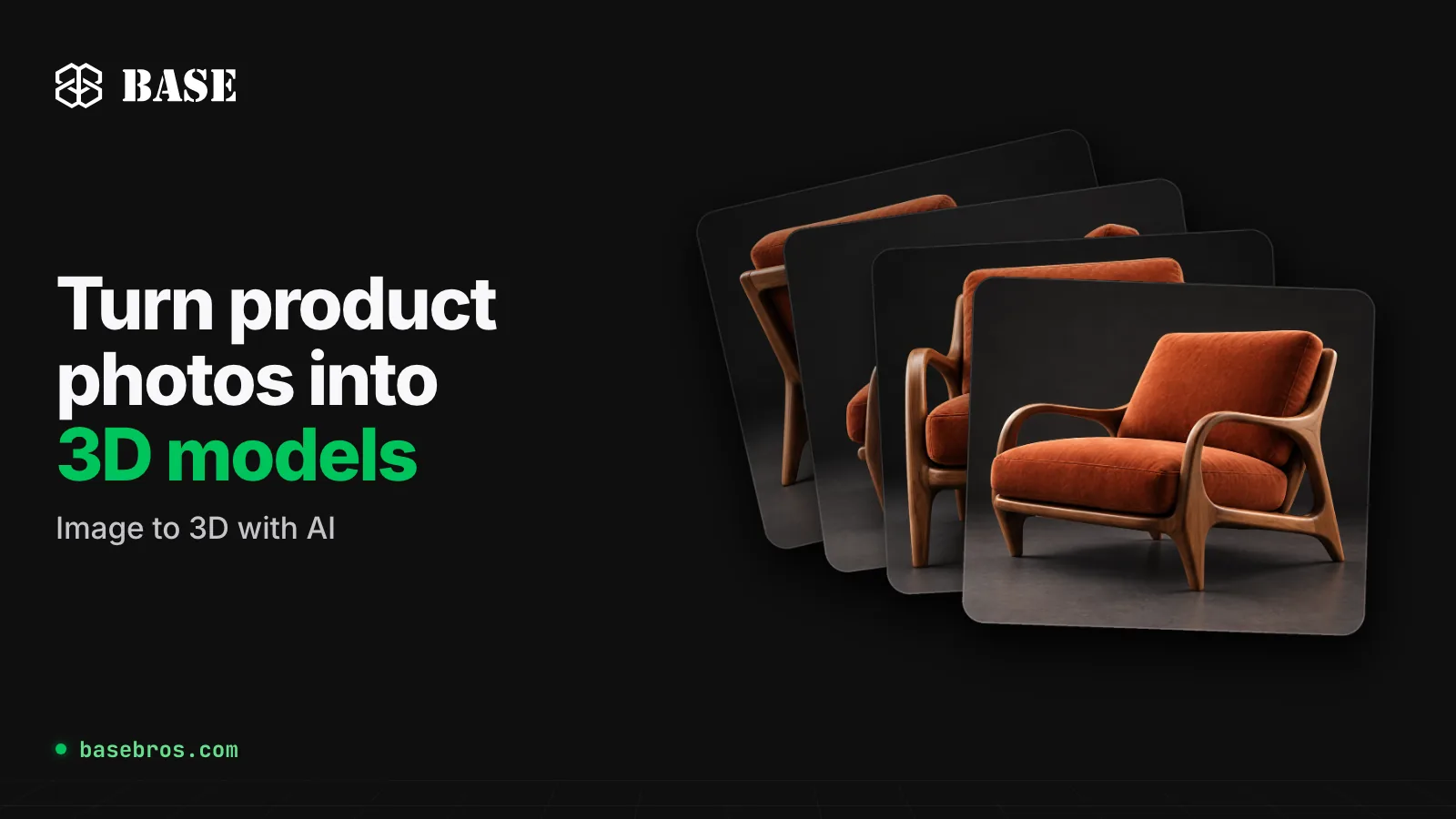
Image to 3D is an AI process that turns one or more photos of a product into a textured 3D model. In BASE 3D-AR Studio by BASE BROS, you upload your product photos to the 3D Generator, pick one of six AI engines and press Generate 3D Model. The result is a GLB file with PBR materials by default, saved to your Library with its own live 3D-AR page, ready to share and open in AR on iPhone, iPad and Android phones.
Key takeaways
- Image to 3D is the default mode of the 3D Generator, and all six engines work from photos: Meshy, Tripo, Rodin, Hunyuan, TRELLIS and Pixal3D.
- One photo is enough to start. For multi-view, Rodin accepts up to 5 images and Meshy, Tripo and Hunyuan Pro up to 4, in the order front, back, left, right.
- Clean, neutral backgrounds, even lighting and the full product in frame give the engines the most to work with.
- Every result is a GLB with PBR materials by default, optimized for 3D-AR automatically and saved to your Library with its own page.
- An AI generation counts as one new model, the same as an uploaded .GLB, and downloads in GLB or USDZ are free.
What is image to 3D?
Image to 3D, also called photo to 3D, is the process of turning 2D images of an object into a 3D model you can rotate, zoom and place in a room. An AI 3D model generator reads the shape, colors and surfaces it sees in your photos and builds a textured mesh from them, so you get a 3D model without modeling it by hand.
For product teams, this closes a common gap. Most products already have photos, but few have a 3D file. With image to 3D, the photos you use on your product page become the starting point for an interactive 3D Viewer page and an Augmented Reality experience.
How does image to 3D work in BASE 3D-AR Studio?
The 3D Generator is the screen the Studio opens to, and Image to 3D is its first and default tab. The entire path from photo to AR happens inside the Studio:

- Upload your photos. Drop PNG, JPG, WebP, AVIF or HEIC files of up to 20 MB each into the Image to 3D tab. AVIF and HEIC files are converted automatically before generation.
- Choose an AI engine. Meshy is selected by default. The engine picker shows each engine's live status, the modes it supports and its Speed and Detail ratings.
- Set the options. Each engine shows its own options, such as Polygons, Texture or Texture Quality, in open rows, so every setting is visible at once. A live ETA updates as you change them.
- Press Generate 3D Model. Up to 3 generations run at the same time and 10 more can wait in a queue, so you can keep working while it runs. Jobs run on the server, so closing the tab does not stop them.
- Review the result. The “Your model is ready” screen offers Download, Live page and Preview Model, a popup 3D viewer for a first look.
The finished model is saved to your Library automatically, and its own 3D-AR page is created at the same time. The Studio then optimizes it for the web with the Optimize tab's Balanced setting: about 50 percent fewer triangles, WebP textures capped at 2K and Draco compression. The Live page button becomes available as soon as this finishes.
How many photos do you need for image to 3D?
One clear photo is enough: every engine can generate a model from a single image. But a single photo shows the product from only one side, so the engine has to infer the rest. Multi-view input gives it real views of the other sides for a more faithful reconstruction.
- Rodin: up to 5 images.
- Meshy, Tripo and Hunyuan Pro: up to 4 images.
- Hunyuan Rapid, TRELLIS and Pixal3D: one image.
Upload multi-view photos in this order: front, back, left, right. Every multi-view engine reads the slots in that order, and the Studio remaps them for any engine that expects a different sequence. You can reorder photos by dragging, remove them one by one or clear them with Remove all.

The set above is a typical example: the same armchair from the front, a rear three-quarter angle, the side and a front three-quarter angle, each on a plain backdrop with the whole chair in frame. For a multi-view run, upload the shots that are closest to front, back, left and right, in that order. Because a three-quarter view shows two sides of the product in one frame, it is a strong choice for engines that take a single image.
How do you take good product photos for image to 3D?
The engine can only rebuild what your photos show. These habits give it the clearest view of your product:
- Use a clean, white or neutral background. A plain backdrop keeps the focus on the product, not the room around it.
- Light the product evenly. Soft, even light without harsh shadows shows the true colors and surfaces.
- Show the full object. Keep a margin around the product and avoid cropping any edge, leg or handle.
- Keep it sharp. Use a steady camera and check focus, because blurred detail cannot become sharp texture.
- Photograph one product per image. Leave out props, hands and packaging, so nothing else becomes part of the model.
- Keep the views consistent. For multi-view, shoot the same product in the same state, with similar distance, height and lighting in every photo.
- Name the file clearly. In Image to 3D, the new model takes the file name of the first image, so a name such as walnut-velvet-armchair saves you renaming it later.
If you plan to use Hunyuan, check the image size too: each side of every reference image must be between 128 and 5000 pixels, and the Studio warns you before the request is sent.
Which AI engine should you choose for image to 3D?
All six engines in the 3D Generator accept photos. Four of them (Meshy, Tripo, Rodin and Hunyuan) also work from text, while TRELLIS and Pixal3D are image-only. The ratings below are the Speed and Detail dots shown in the engine picker, scored from 1 to 3.
| Engine | Photos per run | Text to 3D | Speed / Detail | In the picker |
|---|---|---|---|---|
| Meshy (default) | Up to 4 | Yes | 2 / 3 | Top textures, most options |
| Tripo | Up to 4 | Yes | 3 / 2 | Fast and reliable choice |
| Rodin | Up to 5 | Yes | 2 / 3 | Sharp edges, clean mesh |
| Hunyuan | Up to 4 on Pro, 1 on Rapid | Yes | 2 / 2 | Best for simple shapes |
| TRELLIS | 1 | No | 2 / 2 | Quick with real materials |
| Pixal3D | 1 | No | 1 / 2 | Solid all round detail |
A few points help you decide:
- Meshy is the default engine, and its default Version 7.1 is the strongest choice for image to 3D because it keeps the model faithful to your reference image.
- Tripo is the only engine rated 3 of 3 for Speed, making it well suited to quick iterations.
- Rodin takes the most reference images, up to 5, and offers a Quad mesh option.
- Hunyuan offers two pipelines under one name: Pro, with Version, Polygons and multi-view options, and Rapid, a faster path that takes a single image.
- TRELLIS and Pixal3D turn a single image into a model with full PBR materials and offer texture quality up to 4K, like Meshy.
Generation time depends on the engine, its options and the provider's queue at that moment, so there is no fixed figure. The live ETA estimates the wait for your exact settings. For every option per engine, see the 3D Generator documentation.
What do you get after generation?
Every result is a GLB file, the standard format for 3D on the web, with PBR materials by default. What happens next is automatic:
- A model in your Library. It appears in the model slider, and clicking its card opens it in the Model Editor.
- A live 3D-AR page. Each model has exactly one page, which you can style in Page Designer and share as a link, QR code or embed code from Share & Embed.
- An AR experience. On iPhone and iPad the AR button opens Apple AR Quick Look with a USDZ file that the Studio builds from your GLB. On Android it opens WebXR in Chrome. Both use surface tracking to place the product on a real surface at true scale, and on desktop the button shows a QR code to continue on a phone.
- Free downloads. The Download popup saves the model as GLB or USDZ, with a choice of triangle level, textures and Draco compression. Downloads never count against your live spots or new models.
In the Model Editor, you can refine materials, the scene and its lighting, and controls such as Model Scale, which sets the real-world size in centimeters used in AR. For a step-by-step guide to the page itself, read how to create a 3D and AR product page. To show the model on your own site, see how to add 3D and AR to your website without an app.
What are the most common image to 3D mistakes?
- Busy backgrounds. Furniture, shelves or patterns behind the product compete with it. Shoot against a plain, neutral backdrop.
- Cropped products. A missing leg or handle in the photo leaves the engine guessing. Keep the whole product in frame.
- Harsh lighting. Strong shadows and hot spots hide real surfaces. Use soft, even light.
- Views in the wrong order. Multi-view slots are read as front, back, left, right, so a shuffled set puts the wrong view in each slot.
- Too many photos for the engine. TRELLIS, Pixal3D and Hunyuan Rapid take one image. If you switch engines, the Studio keeps your main image and drops any photos over the new limit.
- Choosing Max when you do not need it. On Meshy, TRELLIS and Pixal3D, the Max polygon level keeps the full mesh and makes very large files. High is the default on these engines, so choose Max only when you need it.
- Expecting to sculpt the mesh afterward. In the Studio you edit the scene, materials, controls and page, not the mesh shape. If the shape is off, improve the photos or try another engine and generate again.
- Forgetting the real-world size. Check Model Scale before sharing, so the product appears at the right size in AR.
How does an AI generation count toward your plan?
There is no separate AI quota. An AI generation counts as one new model when it starts, the same as a .GLB upload, and the finished model takes one live spot. If a generation fails or times out on the provider's side, the new model is returned automatically, and removing a job that is still in the queue returns it too. Cancelling a running generation does not.
- Free: $0 with no credit card, up to 3 live models and 3 new models a month.
- Pro: $0.50 per model per month (launch price), minimum $20 a month for 40 models.
See the pricing page to find the monthly price for the number of models you need.
Frequently asked questions
Can AI turn a single product photo into a 3D model?
Yes. All six engines in the BASE 3D-AR Studio 3D Generator can generate a 3D model from one image. With a multi-view engine, adding back and side views gives a more faithful reconstruction.
Which image formats can I use for image to 3D?
PNG, JPG, WebP, AVIF and HEIC, up to 20 MB per image. AVIF and HEIC files are converted automatically before generation.
In which order should I upload multi-view photos?
Front, back, left, right. Rodin accepts up to 5 images, and Meshy, Tripo and Hunyuan Pro accept up to 4. Hunyuan Rapid, TRELLIS and Pixal3D take a single image.
What file format does image to 3D produce?
Every generated model is a GLB file with PBR materials by default. From the Download popup you can save it as GLB or as USDZ for iPhone and iPad, free of charge.
Can I view the generated model in AR?
Yes. Every generated model gets its own 3D-AR page. It opens in Apple AR Quick Look on iPhone and iPad and in WebXR in Chrome on Android, with no app to install. On desktop, a QR code hands the page off to a phone.
Does an AI generation use my plan's quota?
Yes. An AI generation counts as one new model, the same as an uploaded .GLB. A generation that fails on the provider's side is returned automatically.
Conclusion
Image to 3D turns the product photos you already have into 3D models with their own 3D-AR pages. Shoot the product on a clean background with even light, upload the views in the order front, back, left, right, pick an engine and let the Studio handle optimization, hosting and AR. Start for Free, explore the 3D Generator, or contact the BASE BROS team for custom 3D projects. To learn how to prepare files for the web and AR, read GLB vs USDZ.